Arc sensor configuration

A description of the configuration settings for an Arc sensor.

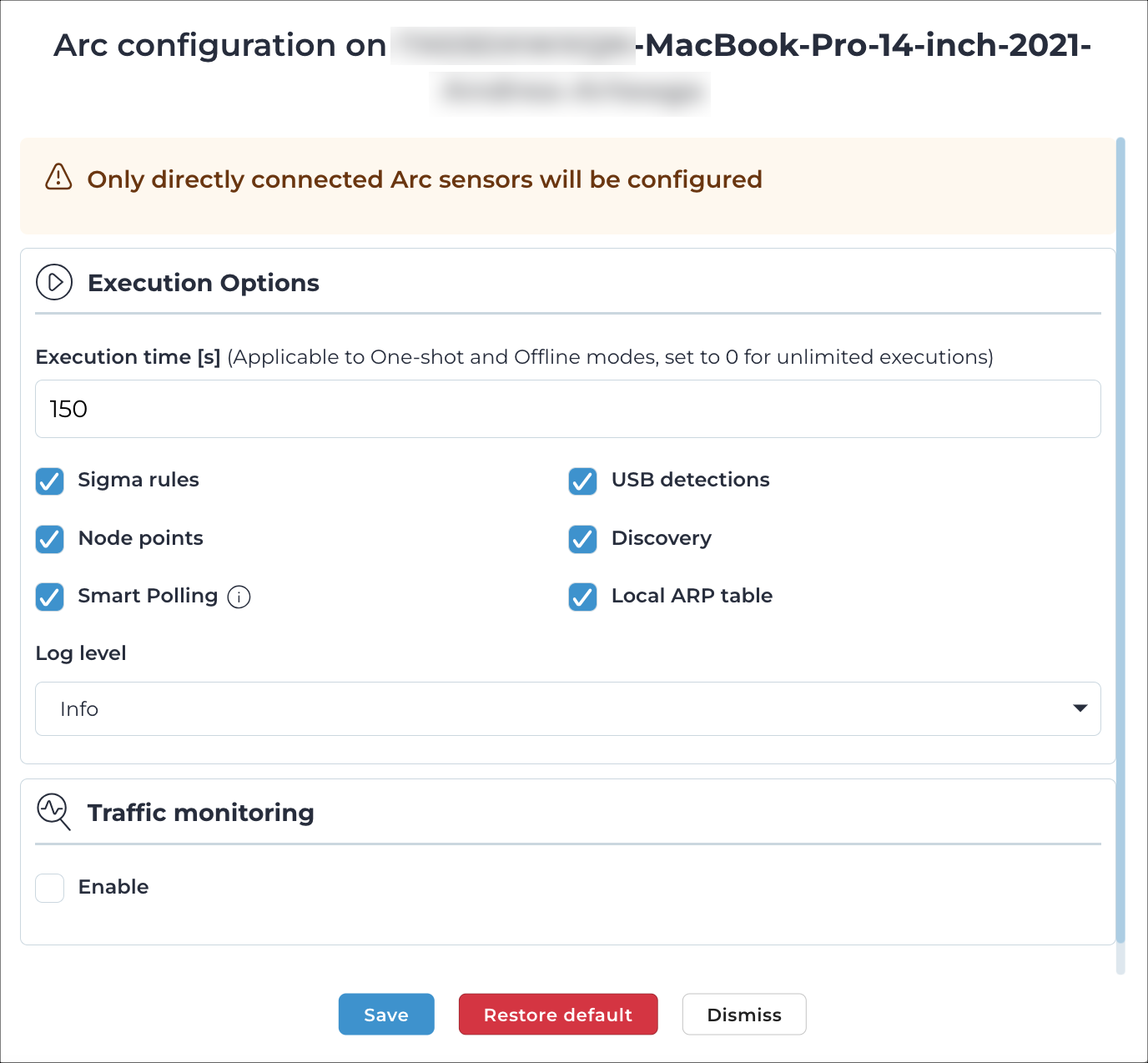
Figure 1. Configuration settings

Configuration settings

Execution time

This field lets you set the time that Arc will run to collect data. This is applicable for One-shot and Offline modes.
Note:
When this is set to 0, the execution time is interpreted as infinite.

Maximum disk space

This field lets you control the maximum amount of disk space in that will be used for Offline mode.

Local behavior analysis (Windows only)

This lets you enable/disable Sigma rules for local behavior analysis.

Malware detections (Windows only)

This lets you enable/disable malware detections based on YARA and rules. Both rules are applied to every newly-detected non-signed on the host machine's file system.

USB detections (Windows only)

This lets you enable/disable detections.

Node points

This lets you enable/disable the production of node points.

Discovery

When enabled, this sends out unsolicited lightweight network announcements to discover neighboring nodes.

Discovery uses lightweight protocol-specific broadcast messages to identify network devices. These messages trigger a response from the devices, which includes identity information. The process is repeated at predefined intervals. At each interval, the sensor will identify the suitable network interfaces and send broadcast messages through them to discover devices on each subnetwork connected to the sensor.

Smart Polling

This lets you enable/disable the execution of Smart Polling strategies from Arc. When enabled, this sends out Smart Polling queries following remote requests coming from Guardian to poll assets that Arc can reach, or assets that have been identified with Discovery.

Note:
Smart Polling requires that a Smart Polling license is enabled upstream.

To force Smart Polling from a specific Arc sensor, even when Guardian was the first to monitor a node, you can use a command such as: vi node 192.168.1.1 capture_device arc[1e6a174c] In this example, 192.168.1.1 is an address of a node you want to poll from a specific Arc sensor. 1e6a174c are the first eight characters of the Arc sensor that you want to poll the node with. To find that sensor , you can select the Arc sensor from the Sensors page of your Guardian and read the ID field in the right pane. To reset the behavior, you can set the capture_device back to the value of the Guardian interface.

Local ARP table

This lets you enable/disable the ability to use the local table to confirm addresses. The Use static entries checkbox lets you enable/disable the use of static entries in the table. Static entries are user-defined. You should only use them if they can be trusted.

Log level

This dropdown lets you select the verbosity level for the log files. The options are:

  • Debug
  • Info
  • Warning
  • Error
The logging system options have an increasing level of verbosity, from the least verbose to the most verbose. Error < Warning < Info < Debug.
  • Error: Creates a minimalistic log, only unexpected errors are logged
  • Warning: Creates extra errors that might show on some s, but that are generally considered as acceptable
  • Info: Logs relevant successful events, it shows the program’s progress (recommended)
  • Debug: Logs extra events that are normally useful for debugging purposes. Given its verbosity it is best to activate it only when debugging activities are involved

Enable

This checkbox lets you enable/disable traffic monitoring.

Enable continuous mode

This checkbox lets you enable/disable continuous mode. For more details, see Continuous mode.

Arc uses two different methods for traffic monitoring:
  • Intermittent mode
  • Continuous mode

Intermittent mode

This is the default mode, the traffic is monitored, or sniffed, for a duration of 10 seconds at each notify. The purpose of this limitation is to preserve the resources of the host machine, which prevents excessive memory, or central processing unit (CPU), spikes. You can configure these options:
  • Monitoring time [s] per notification
  • Max packets per notification
  • Max used Memory (MB): this value can be tuned to allow more or less traffic buffering in case the traffic to process exceeds the Arc and network capacity to send it out

Continuous mode

This mode sniffs traffic continuously from the host's network interface controllers. Depending on the amount of sniffed traffic, continuous mode might utilize more CPU and memory on the host. As the traffic is processed upstream, the performance of the remote endpoint is also affected. You can configure:

  • Max used Memory (MB): this value can be tuned to allow more or less traffic buffering in case the traffic to process exceeds the Arc and network capacity to send it out

Network interface

This dropdown lets you select a network interface to configure. Each network interface can then be enabled, and be tuned with a monitoring filter.

If you add, remove, or edit the network interfaces on the host, Arc does not automatically add it to the list of sniffing interfaces. For example, if you add a new network card, to enable Arc to use it, you should stop Arc, and then start it again.