Jump to main content
  • Vantage
  • CMC
  • Arc
  • Guardian Air
  • Guardian
  • Remote Collector
  • Threat Intelligence
  • Asset Intelligence
  • Hardware
  1. Home
  2. Vantage

    Learn how Vantage uses the power and simplicity of SaaS to deliver unmatched security and visibility across your OT, IoT and IT networks.

  3. User Guide

    Information about the main features of Vantage and the tasks that you can do from the user interface (UI).

  4. Assets

    The Assets page shows all the physical components and systems that Vantage has detected through your sensors. Composed of one or more nodes, assets are the fundamental resources that Vantage protects.

  5. Details page

    The details page shows a set of fields which are applicable to the related type of asset.
  • Vantage

    Learn how Vantage uses the power and simplicity of SaaS to deliver unmatched security and visibility across your OT, IoT and IT networks.

    • Introduction

      An overview of Vantage.

    • Administrator Guide

      Information about the Administration section of Vantage, and the tasks that you can do in this part of the software.

    • User Guide

      Information about the main features of Vantage and the tasks that you can do from the user interface (UI).

      • Sensors

        The Sensors page lets you view all of the sensors that you have in your system.

      • Alerts

        The Alerts page shows all the alerts notifications that your sensors pass to Vantage related to security incidents in your network. This page lets you learn about the alerts, edit their values and post comments.

      • Assets

        The Assets page shows all the physical components and systems that Vantage has detected through your sensors. Composed of one or more nodes, assets are the fundamental resources that Vantage protects.

        • Overview

          The Overview page provides a high-level summary of assets that Vantage has detected. This information includes their types, vendors, operating systems, firmware versions, protocols, and risk levels, along with graphical insights into their distribution across zones, sites, and lifecycles.

        • Detailed list

          The Detailed list page shows a comprehensive table view of all assets that Vantage has detected. This information includes details about their sites, types, vendors, operating systems, and firmware versions.

        • Details page

          The details page shows a set of fields which are applicable to the related type of asset.

          • Summary tab

            The Summary tab shows an overview of the details for the asset.

          • Risk tab

            The Risk tab shows an overview of the risk assessment for the asset.

          • Processes tab

            The Processes tab shows all running processes detected on the asset with details like name, ID, and connection counts. It enables security teams to monitor activity and investigate potential threats and supports proactive management of asset performance and risk.

          • Users tab

            The Users tab shows all the users that Vantage has detected for this asset.

          • Hardware Components tab

            The Hardware Components page shows a list of hardware modules installed on the same chassis as the selected controller, providing details on each component for better visibility and management of the device’s physical configuration.

          • Nodes tab

            The Nodes tab shows all the nodes that Vantage has detected. Nodes are individual actors in the network communication. Assets have of one, or more, nodes. A node could be a device, such as a computer, a remote terminal unit (RTU), or a programmable logic controller (PLC). The protocols that a node uses can provide insights about its asset.

          • Links tab

            The Links tab shows all the links that Vantage has detected. Links are the connections between the asset and other physical systems.

          • Sessions tab

            The Sessions tab shows all the sessions that Vantage has detected for this asset. Sessions are semi-permanent, interactive information exchanges between two or more communicating nodes.

          • Variables tab

            The Variables tab shows all the variables that Vantage has detected for this asset. Variables are the numerical values that are related to an industrial process that your sensors monitor.

          • Vulnerabilities tab

            The Vulnerabilities tab shows all the vulnerabilities that Vantage has detected for this asset. Vulnerabilities are weaknesses that reduce the security of your system and give threat actors an opportunity to exploit your system.

          • CPEs tab

            The CPEs tab shows all the common platform enumerations (CPEs) that Vantage has detected for this asset.

          • Software tab

            The Software list tab shows all the software installations that Vantage has detected on this asset.

          • Alerts tab

            The Alerts tab shows all the alerts that Vantage has detected for this asset.

          • Tags tab

            The Tags tab shows all the tags for this asset. Tags are user-defined labels that have been assigned to this asset. Tags are associated with user roles to define access control.

          • Sensors tab

            The Sensors tab shows all the sensors that Vantage has detected for this asset.

        • Summary drawer

          When you double-click an asset in the table, the summary drawer shows. This lets you post a comment, or open the related details page.

        • Table interactions
      • Wireless

        The Wireless page lets you buy and connect a Guardian Air sensor. Once you have connected one or more Guardian Air sensor, the Wireless page show the connected Guardian Air sensors.

      • Queries

        The Queries page lets you write queries for your system. You can also save queries and assertions to be used again.

      • Vulnerabilities

        The Vulnerabilities page shows a list of all the vulnerabilities that Vantage has detected in your system. Vulnerabilities are weaknesses that reduce the security of your system and give threat actors an opportunity to exploit your system.

      • Vantage IQ

        Vantage IQ helps you navigate and explore your network. You can use smart query commands to leverage advanced machine learning and data analytic algorithms to dive deeper into your data.

      • Network

        The Network page shows a visual representation of your network and all its assets.

      • Graph

        Displays a visual map of your network, highlighting asset connections and communication paths. Users can switch between network and physical views to explore infrastructure relationships.

      • Process

        The Process page shows a list of processes in your environment. Processes are a set of repeatable functions that a business does to deliver a core value.

      • Dashboards

        The Dashboards page shows a list of all the dashboards that have been created.

      • Reports

        The Reports page shows all the reports that the sensors in your system have created.

      • Sites

        The Sites page shows all the geographical locations of the assets in your system. It lets you associate a site to one or more network domains. You can also add details such as the country or city of the site.

      • Workbooks

        The Workbooks page shows recommended courses of action that can improve your network security. Generated through machine learning, workbooks highlight the vulnerabilities currently creating the highest risk exposure.

      • Threat Intelligence

        The Threat Intelligence page shows an overview of all of the available threat cards and categories. It also lets you filter the threat cards to show only malware, threat actors, or vulnerabilities

      • Asset Risk

        The Asset Risk page provides an in-depth view of asset risk levels. This includes an overview, detailed analysis, and benchmark comparisons to help assess and manage risks effectively.

      • Smart Polling

        Smart Polling provides a centralized interface for creating, managing, and monitoring polling plans within your organization. It helps you streamline data collection and control monitoring activities from one location.

      • Async operations

        The Async operations page lets you keep track of tasks that are being executed in the background, and it shows their outcome once that they are completed.

      • What's new drawer

        The What's new drawer shows a list of new features, enhancements, and fixes for issues.

      • Administration
      • Profile settings

        The profile settings menu lets you edit your user settings and update your profile.

      • Organizations menu

        The organizations menu lets you search or show a list of all of your organizations, and lets you switch between them. Vantage provides a default organization, but administrators can add more organizations as necessary.

    • Print format documentation

      A list of all the print-format documentation that is available for Vantage.

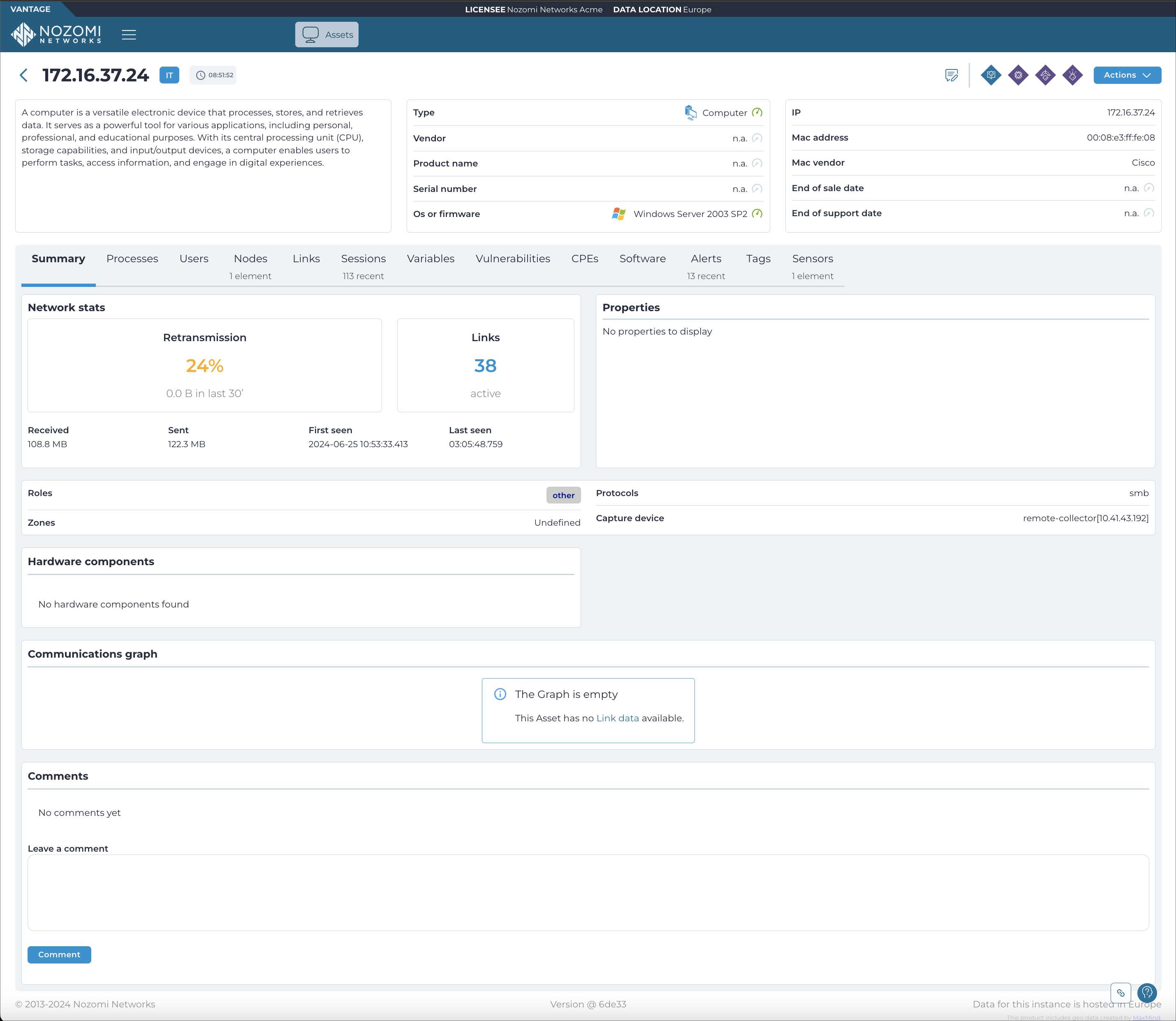
Details page

The details page shows a set of fields which are applicable to the related type of asset.

Figure 1. Details page

Details page

Actions dropdown

This dropdown gives you access to these actions:
  • Delete
  • Export (bulk option only)
  • Create Asset Rule From This Asset

Tabs

The details page has these tabs:
  • Summary tab
  • Risk tab
  • Processes tab
  • Users tab
  • Hardware Components tab
  • Nodes tab
  • Links tab
  • Sessions tab
  • Variables tab
  • Vulnerabilities tab
  • CPEs tab
  • Software tab
  • Alerts tab
  • Tags tab
  • Sensors tab
Related information
  • Open the details page
    You can open a details page for individual assets that are shown in the asset page table. You can open the details page with two different methods.
On this page
  • Actions dropdown
  • Tabs
Complete website

Copyright © 2013-, Nozomi Networks Inc.     |     Published: