Alert Close Options

The Alert Close Options page lets you define custom explanations for closing an alert.
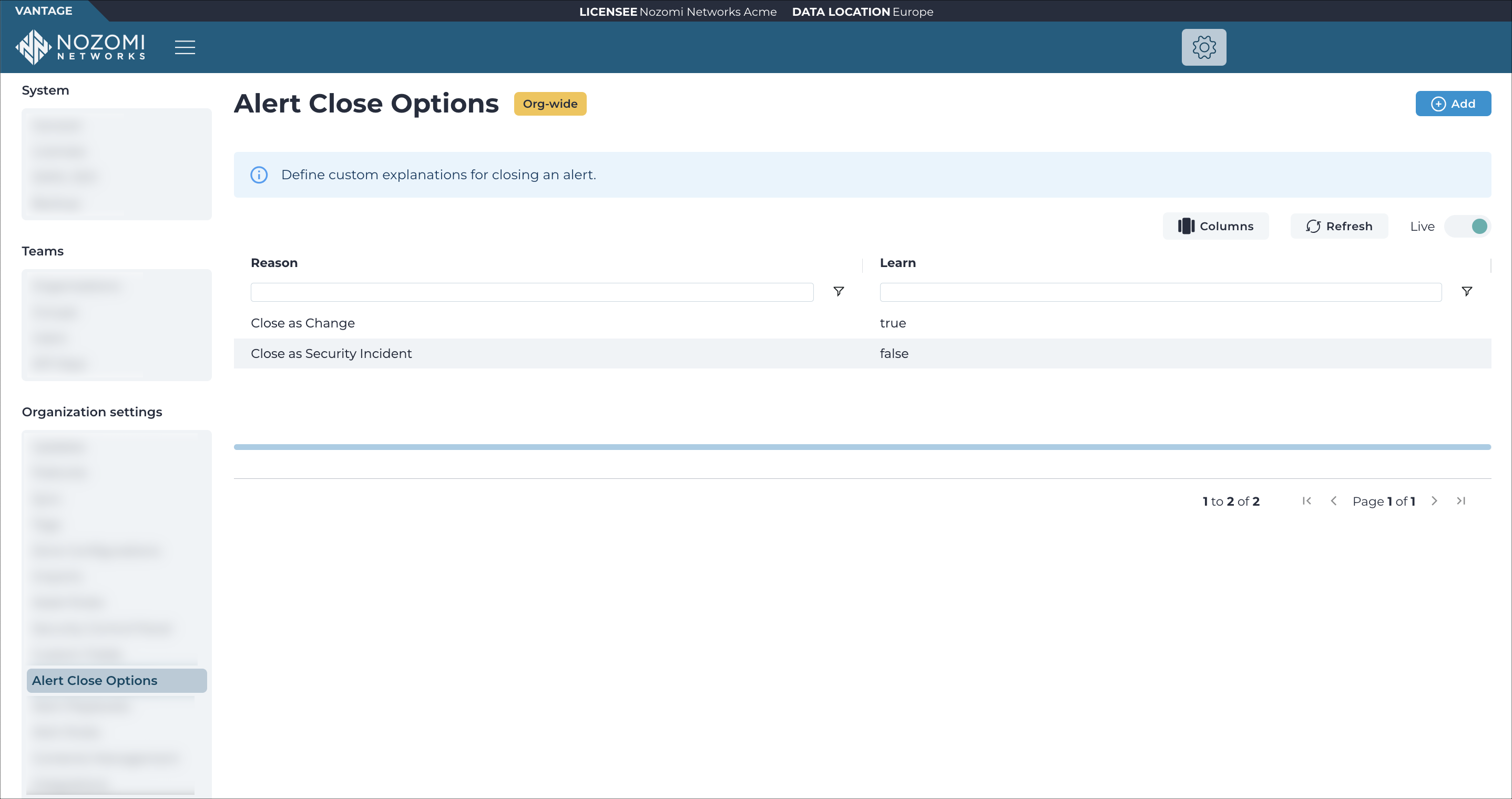
Figure 1. Alert Close Options page

The Alert Close Options table listing built-in and custom alert closing options, with columns for Created at, Updated at, Reason, and Learn.

Note:
Built-in alert closing options cannot be edited or deleted. Only custom options that you create are editable.

Built-in options

Vantage includes four built-in alert closing options that are available to all organizations:

  • Close as Security Incident: Marks the alert as a confirmed security incident. Vantage generates new alerts if a similar event happens again.
  • Close as Change: Marks the alert as an expected change. Vantage learns the change so that similar future alerts are suppressed.
  • Close with Alert Rule: Creates an alert rule to mute future alerts that match the same conditions. Only appears when the alert has deduplication components that Vantage can use to create an alert rule.
  • Close as Known Asset: Marks the asset as known in its current geofence area and updates its location. Only appears for geofence alerts where the asset has an associated geofence area.

Learn behavior

When you close an alert with a Learn option, Guardian integrates the detected change into the network baseline. For example, new nodes or communication patterns that triggered the alert are recorded as safe so they do not generate new alerts. Learn is only applicable to alerts related to deviations from the baseline. If an alert cannot be learned, Vantage presents only the options that don't have the Learn flag.

Add

This button lets you add a new alert closing option.

Columns

The Columns button lets you select which of the available columns for the current page will show.

Live

The Live toggle lets you change live view on, or off. When live mode is on, the page will refresh periodically.

Refresh

The icon lets you immediately refresh the current view.

Table

Column label Description
Created at Shows when the alert closing option was created.
Updated at Shows when the alert closing option was last updated.
Reason Shows the label for this alert closing option. This label appears in the Reason dropdown when you close an alert.
Learn Indicates whether closing an alert with this option triggers Learn. When enabled, Guardian integrates the detected change into the network baseline so that it does not generate new alerts.