
Manage update service contents configurations
You can add, edit, or delete custom update service contents configurations from the CMC to override the default download behavior for specific appliances.
About this task
Procedure
-
In the top navigation bar, select
 The administration page opens.
-
In the Settings section, select Update service
contents.
The Update service contents page opens and shows the configuration in use on the current machine.
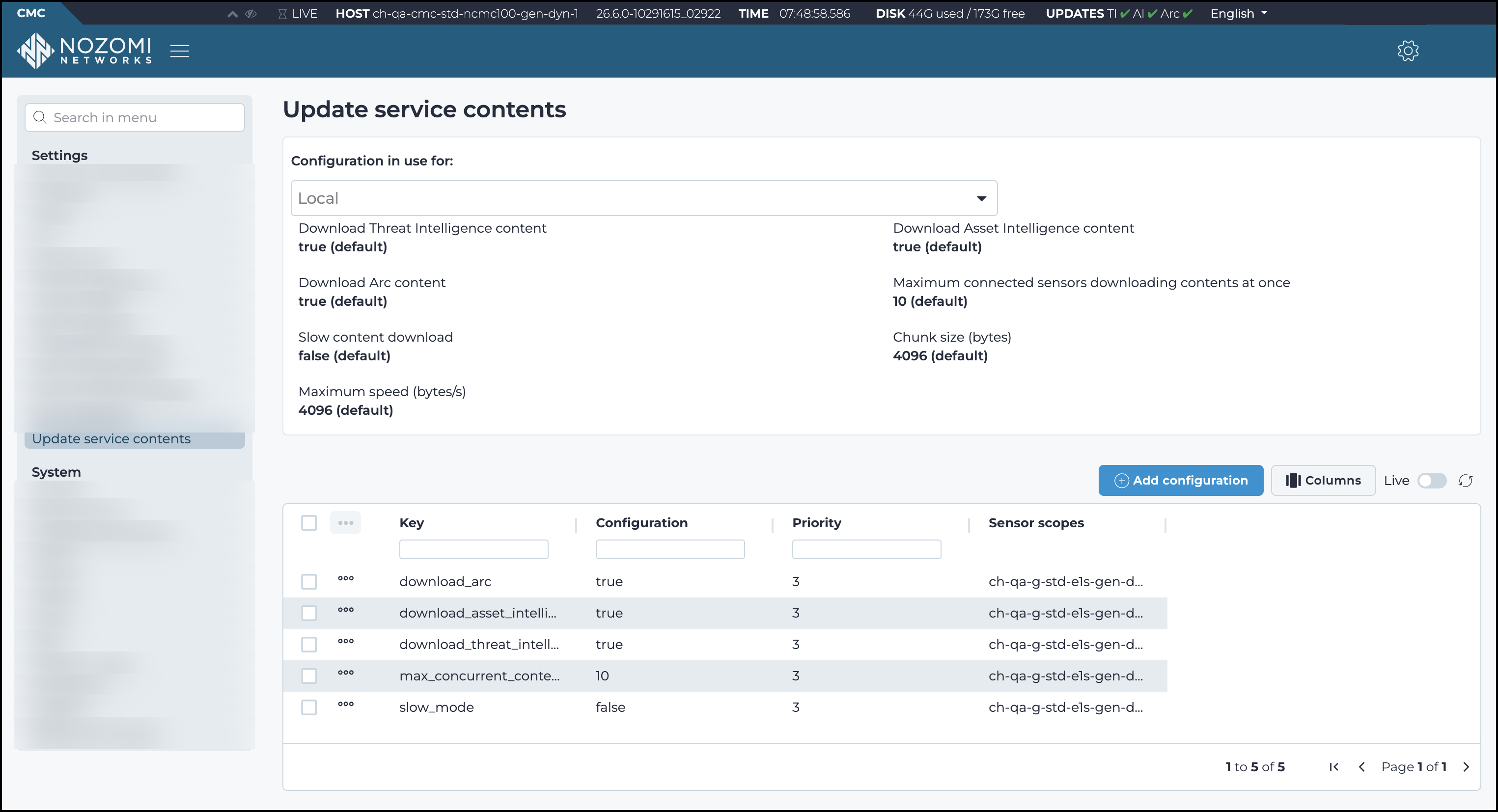
- Optional:
To open this page from the Sensors page, select
Contents settings in the toolbar of the
List tab.
The action is available next to Allow all filtered sensors.
- Optional:
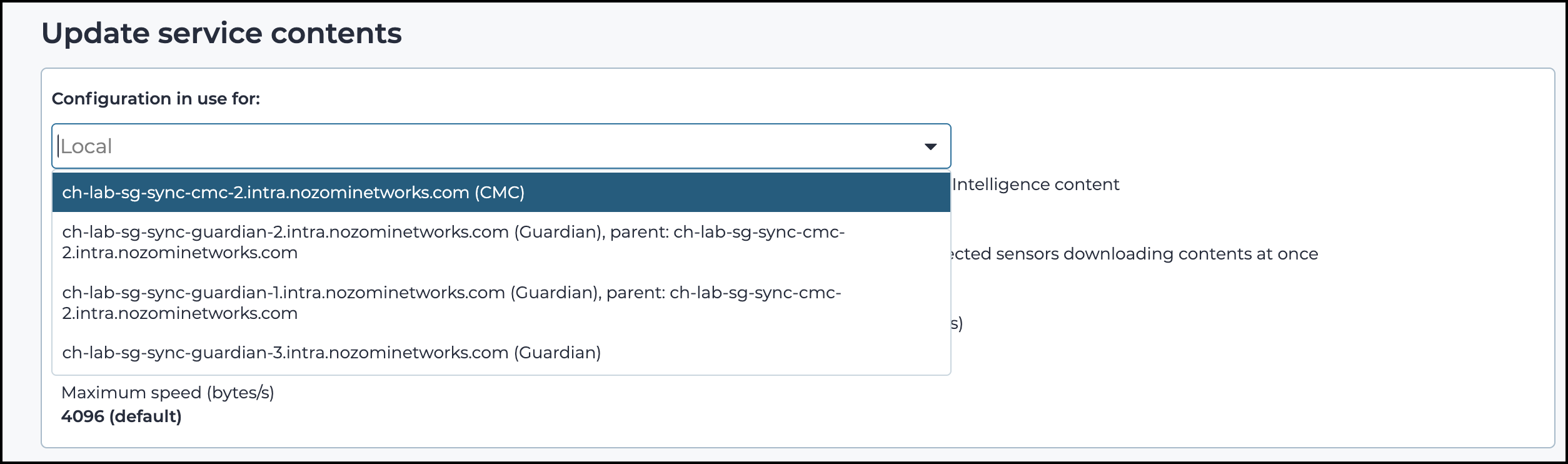
To see the configuration in use on a specific appliance, select it in the
Configuration in use for list.
The list shows the connected appliances with their type and parent. Select Local to go back to the configuration in use on the current machine.
-
Select Add configuration.
The Contents settings dialog shows.
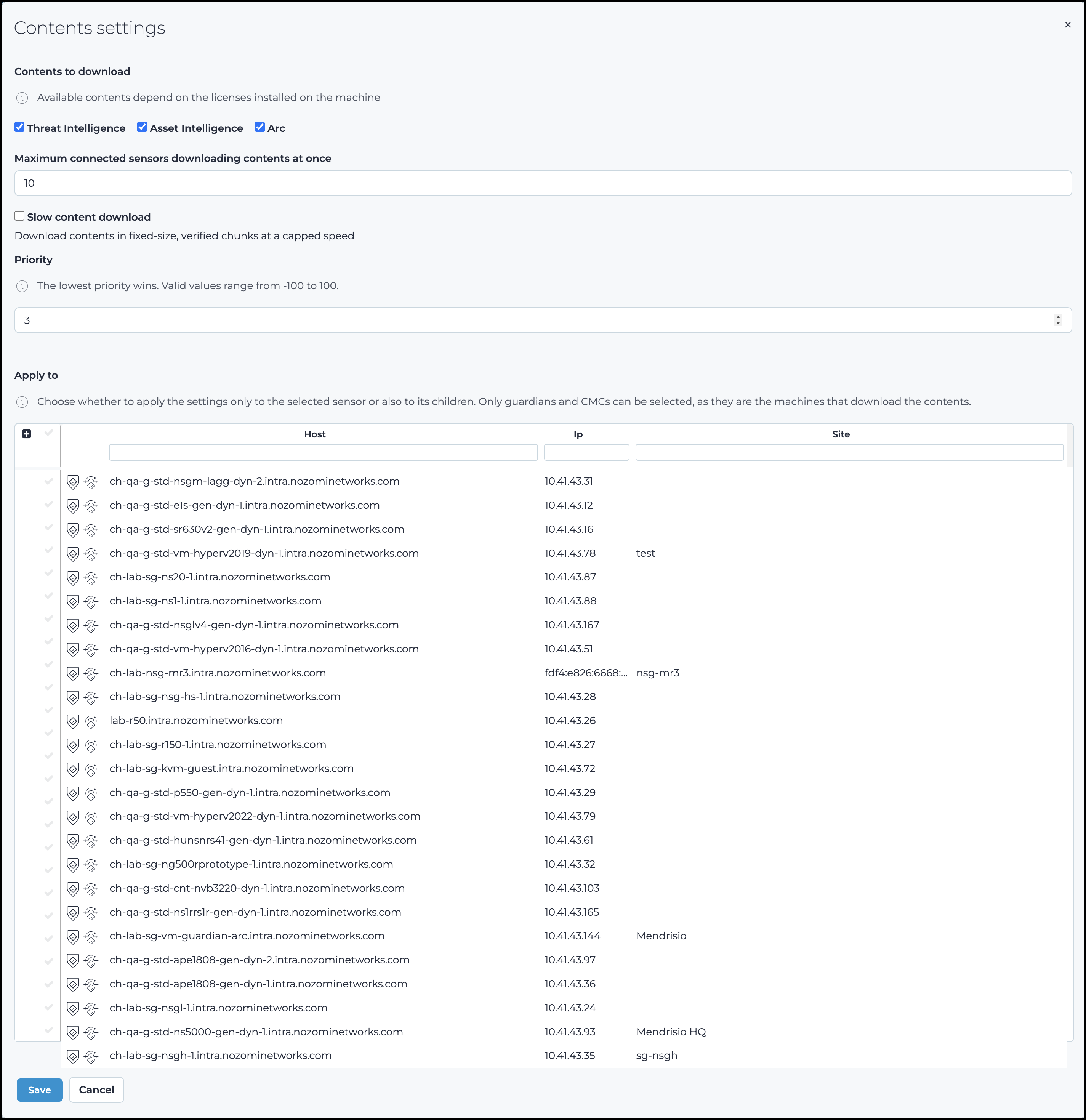
- In Contents to download, select the types of content that the configuration downloads.
- Optional: Select Slow content download and enter the Maximum speed (bytes/s) and the Chunk size (bytes).
-
Enter the Priority of the configuration.
The configuration with the lowest priority value applies to an appliance. Valid values range from -100 to 100.
-
In Apply to, select the appliances that the configuration applies
to.
If you do not select any appliance, the configuration applies to all the appliances.
-
Select Save.
The configuration shows in the configurations table.
- Optional:
To edit or delete a configuration, select the three-dots menu next to its row
and select Edit or Delete.
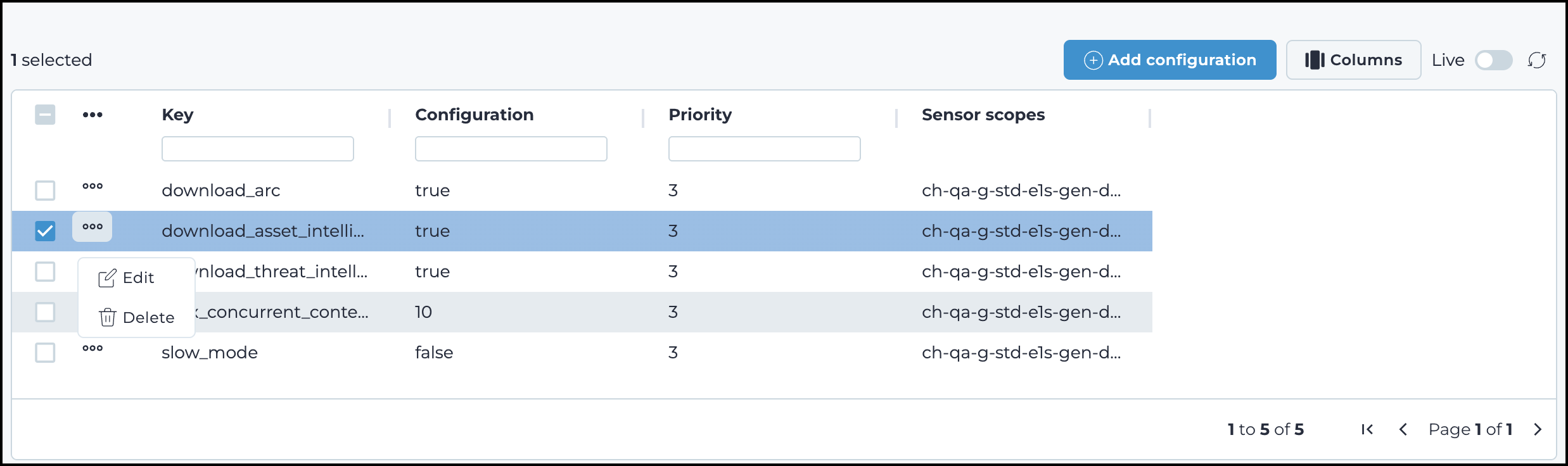
If you select Edit, the Edit configuration dialog shows. You can change the value of the configuration and its priority.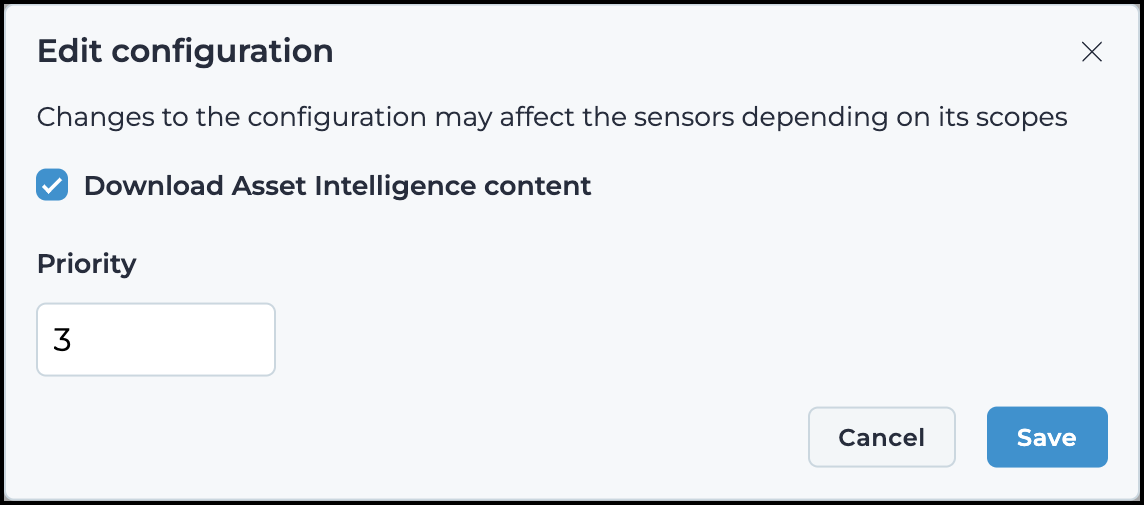 If you select Delete, confirm the deletion when prompted. The deletion is propagated to the machines that hold a copy of the configuration.To delete multiple configurations, select their rows and select Bulk actions. Confirm the deletion when prompted.